> ## Documentation Index
> Fetch the complete documentation index at: https://docs.magic.link/llms.txt
> Use this file to discover all available pages before exploring further.
# Mobile Allowlist
> Mobile Allowlist ensures secure mobile app access by restricting which mobile applications can use your Magic application, preventing unauthorized usage and protecting your API keys.
## Overview
The Mobile Allowlist is a security feature that restricts which mobile applications can access your Magic application. When enabled, Magic will only allow requests from mobile apps whose App IDs are explicitly included in your allowlist.
### Security Benefits
Prevents unauthorized mobile apps from using your Magic application and API keys.
Blocks all traffic from unknown mobile sources, ensuring only approved apps can authenticate.
### How It Works
When a mobile app makes a request to your Magic application:
1. **App ID Check**: Magic verifies the app's Bundle ID (iOS) or Application ID (Android) against your allowlist
2. **Allow/Block**: Requests from allowed apps proceed normally; blocked apps receive an error
3. **User Notification**: Blocked apps show a user-friendly error message explaining the restriction
**Mobile Only**: The Mobile Allowlist only applies to mobile applications using the Magic SDK. It doesn't affect web applications or server-side integrations.
## Usage
### Prerequisites
Ensure your mobile SDK has been updated to the required version to enable this feature:
**Version**: 3.2.0 or later
**Version**: 2.2.0 or later
**Version**: 1.1.0 or later
**Version**: 0.2.0 or later
**Version**: 13.0.0 or later (Bare / Expo)
### Dashboard Configuration
Navigate to the [Magic Dashboard](https://dashboard.magic.link) and select the application you want to configure.
Go to the **Settings** tab of your selected application.
Scroll down to the **"Allowed Origins & Redirects"** section.
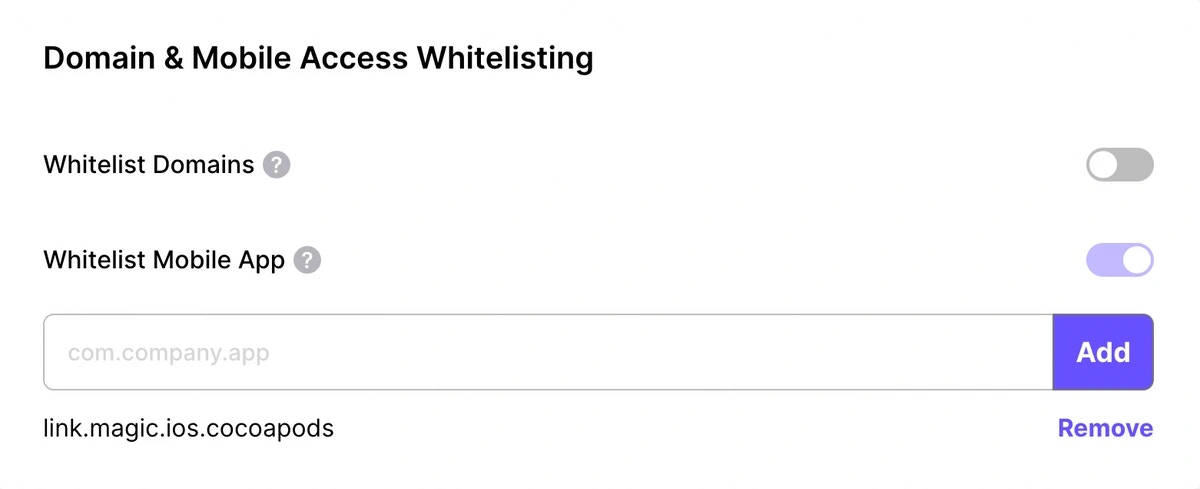
Toggle the **Mobile App** switch to enable it.
In the text input field that appears, add the App IDs you want to allow. You can add multiple App IDs by separating them with commas or line breaks.
Click **Save** to apply your mobile allowlist configuration.
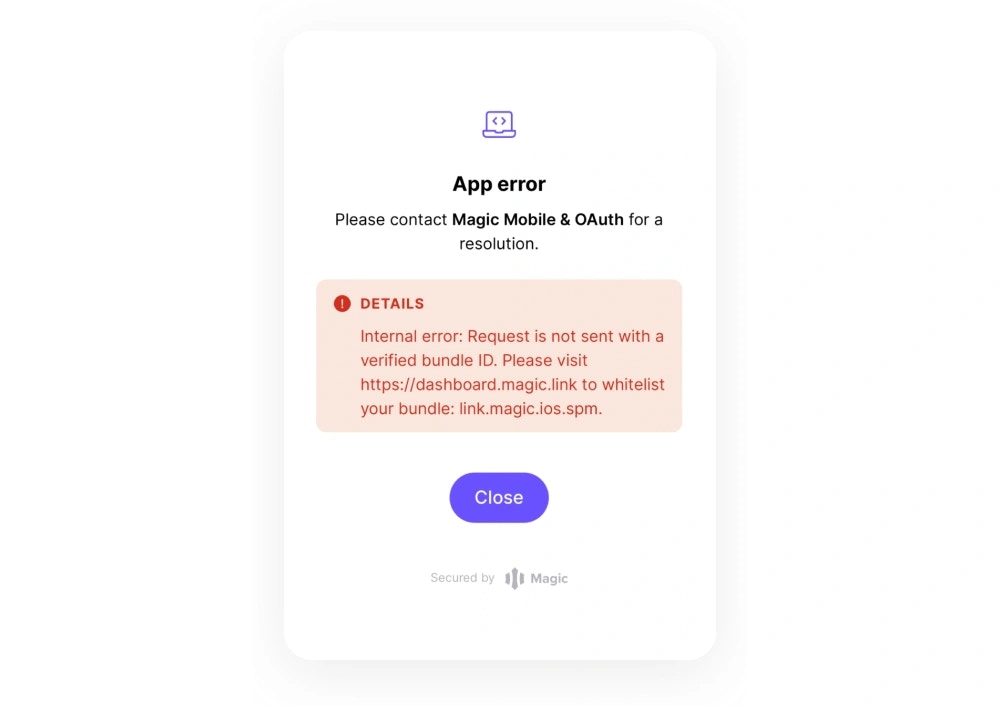
 After adding App IDs, traffic from unauthorized mobile sources is blocked. Users from unauthorized apps will see an error message when they try to log in. If this happens unexpectedly, add the App ID from the error message to unblock these users.
 ### App ID Formatting
When adding App IDs to your allowlist, follow these formatting rules:
* **iOS Bundle ID**: `com.example.app`, `link.magic.ios`
* **Android Application ID**: `com.example.app`, `link.magic.android`
* **Reverse DNS notation**: Usually written as `domain.company.app`
* **Minimum segments**: Must have at least two segments (one or more dots)
* **Valid characters**: Alphanumeric \[a-zA-Z0-9] or `-` or `_`
```
com.example.myapp
link.magic.ios
link.magic.android
com.company.staging.app
io.github.username.project
```
* **Case sensitive**: App IDs are case-sensitive
* **Exact match**: Must match exactly as defined in your app
* **No wildcards**: Specific App IDs only, no wildcard patterns
* **Platform specific**: iOS and Android App IDs are separate entries
### Finding Your App ID
The App ID is represented by the bundle identifier on iOS and the applicationId on Android:
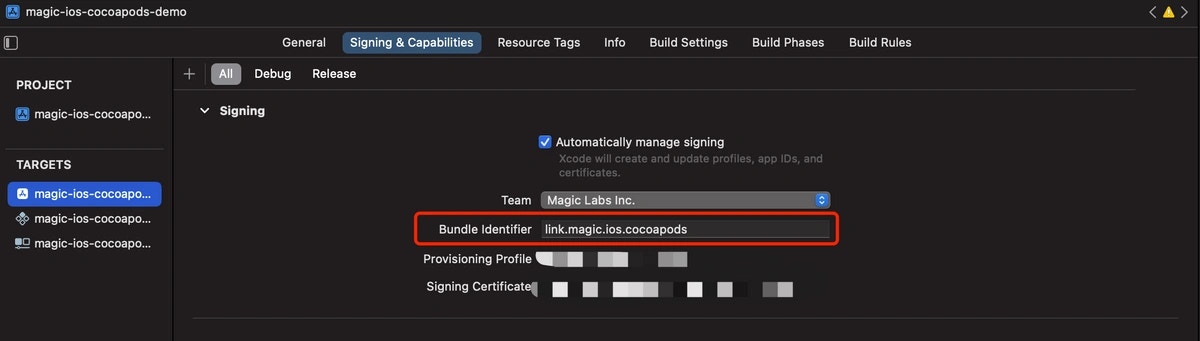
Apple uses bundle identifiers (bundle IDs) to uniquely identify an application in Apple's ecosystem. These IDs are usually written in reverse DNS notation.
**Location**: **Target → Signing & Capabilities → Bundle Identifier**
### App ID Formatting
When adding App IDs to your allowlist, follow these formatting rules:
* **iOS Bundle ID**: `com.example.app`, `link.magic.ios`
* **Android Application ID**: `com.example.app`, `link.magic.android`
* **Reverse DNS notation**: Usually written as `domain.company.app`
* **Minimum segments**: Must have at least two segments (one or more dots)
* **Valid characters**: Alphanumeric \[a-zA-Z0-9] or `-` or `_`
```
com.example.myapp
link.magic.ios
link.magic.android
com.company.staging.app
io.github.username.project
```
* **Case sensitive**: App IDs are case-sensitive
* **Exact match**: Must match exactly as defined in your app
* **No wildcards**: Specific App IDs only, no wildcard patterns
* **Platform specific**: iOS and Android App IDs are separate entries
### Finding Your App ID
The App ID is represented by the bundle identifier on iOS and the applicationId on Android:
Apple uses bundle identifiers (bundle IDs) to uniquely identify an application in Apple's ecosystem. These IDs are usually written in reverse DNS notation.
**Location**: **Target → Signing & Capabilities → Bundle Identifier**
 Your Android App ID is defined by the `applicationId` property in your module's `build.gradle` file:
```kotlin Android icon="android" theme={null}
android {
defaultConfig {
applicationId = "link.magic.android"
minSdk = 24
targetSdk = 31
versionCode = 1
versionName = "1.0"
}
...
}
```
For more details, refer to the [Official Android documentation](https://developer.android.com/studio/build/configure-app-module#set_the_application_id).
### Programmatic Configuration
You can manage your mobile allowlist programmatically using the Magic API. This is useful for:
* **Automated deployments**: Add App IDs as part of your CI/CD pipeline
* **Bulk management**: Add or remove multiple App IDs at once
* **Integration**: Manage App IDs from your own admin interface
#### Prerequisites
To use the programmatic API, you'll need your **Secret Key**:
Navigate to a Magic app from the main dashboard landing page
On the app home page, scroll to the **API Keys** section
Copy your **Secret Key** from the API Keys section
**Security**: Keep your Secret Key secure and never expose it in client-side code or public repositories.
#### API Operations
```bash List App IDs icon="list" theme={null}
curl -X GET 'https://api.dashboard.magic.link/v1/admin/access_whitelist' \
-H 'X-Magic-Secret-Key: sk_live_XXXXXXXX'
```
```bash Add App IDs icon="plus" theme={null}
curl -X POST 'https://api.dashboard.magic.link/v1/admin/access_whitelist' \
-H 'X-Magic-Secret-Key: sk_live_XXXXXXXX' \
-H 'Content-Type: application/json' \
-d '[
{
"access_type": "bundle",
"value": "com.example.myapp"
}
]'
```
```bash Remove App IDs icon="minus" theme={null}
curl -X DELETE 'https://api.dashboard.magic.link/v1/admin/access_whitelist' \
-H 'X-Magic-Secret-Key: sk_live_XXXXXXXX' \
-H 'Content-Type: application/json' \
-d '{
"access_type": "bundle",
"value": "com.example.myapp"
}'
```
Your Android App ID is defined by the `applicationId` property in your module's `build.gradle` file:
```kotlin Android icon="android" theme={null}
android {
defaultConfig {
applicationId = "link.magic.android"
minSdk = 24
targetSdk = 31
versionCode = 1
versionName = "1.0"
}
...
}
```
For more details, refer to the [Official Android documentation](https://developer.android.com/studio/build/configure-app-module#set_the_application_id).
### Programmatic Configuration
You can manage your mobile allowlist programmatically using the Magic API. This is useful for:
* **Automated deployments**: Add App IDs as part of your CI/CD pipeline
* **Bulk management**: Add or remove multiple App IDs at once
* **Integration**: Manage App IDs from your own admin interface
#### Prerequisites
To use the programmatic API, you'll need your **Secret Key**:
Navigate to a Magic app from the main dashboard landing page
On the app home page, scroll to the **API Keys** section
Copy your **Secret Key** from the API Keys section
**Security**: Keep your Secret Key secure and never expose it in client-side code or public repositories.
#### API Operations
```bash List App IDs icon="list" theme={null}
curl -X GET 'https://api.dashboard.magic.link/v1/admin/access_whitelist' \
-H 'X-Magic-Secret-Key: sk_live_XXXXXXXX'
```
```bash Add App IDs icon="plus" theme={null}
curl -X POST 'https://api.dashboard.magic.link/v1/admin/access_whitelist' \
-H 'X-Magic-Secret-Key: sk_live_XXXXXXXX' \
-H 'Content-Type: application/json' \
-d '[
{
"access_type": "bundle",
"value": "com.example.myapp"
}
]'
```
```bash Remove App IDs icon="minus" theme={null}
curl -X DELETE 'https://api.dashboard.magic.link/v1/admin/access_whitelist' \
-H 'X-Magic-Secret-Key: sk_live_XXXXXXXX' \
-H 'Content-Type: application/json' \
-d '{
"access_type": "bundle",
"value": "com.example.myapp"
}'
```