> ## Documentation Index
> Fetch the complete documentation index at: https://docs.magic.link/llms.txt
> Use this file to discover all available pages before exploring further.
# Domain Allowlist
> Domain Allowlist allows your application to be secure-by-default, meaning that it establishes a strong security posture right from the start, and only permits communication with specific domains that have been explicitly approved.
## Overview
The Domain Allowlist is a security feature that restricts which domains can make requests to your Magic application. When enabled, Magic will reject all requests from domains that are not explicitly included in your allowlist.
### Security Benefits
Prevents unauthorized usage of your public API keys by restricting access to approved domains only.
Blocks potential attacks from malicious domains attempting to use your Magic integration.
### How It Works
When a request is made to your Magic application:
1. **Domain Check**: Magic verifies the requesting domain against your allowlist
2. **Allow/Block**: Requests from allowed domains proceed normally; blocked domains receive an error
3. **User Notification**: Blocked requests show a user-friendly error message explaining the restriction
**Important**: Once enabled, the Domain Allowlist applies to ALL requests to your Magic application. Make sure to add all legitimate domains before enabling this feature.
## Usage
### Dashboard Configuration
Navigate to the [Magic Dashboard](https://dashboard.magic.link) and select the application you want to configure.
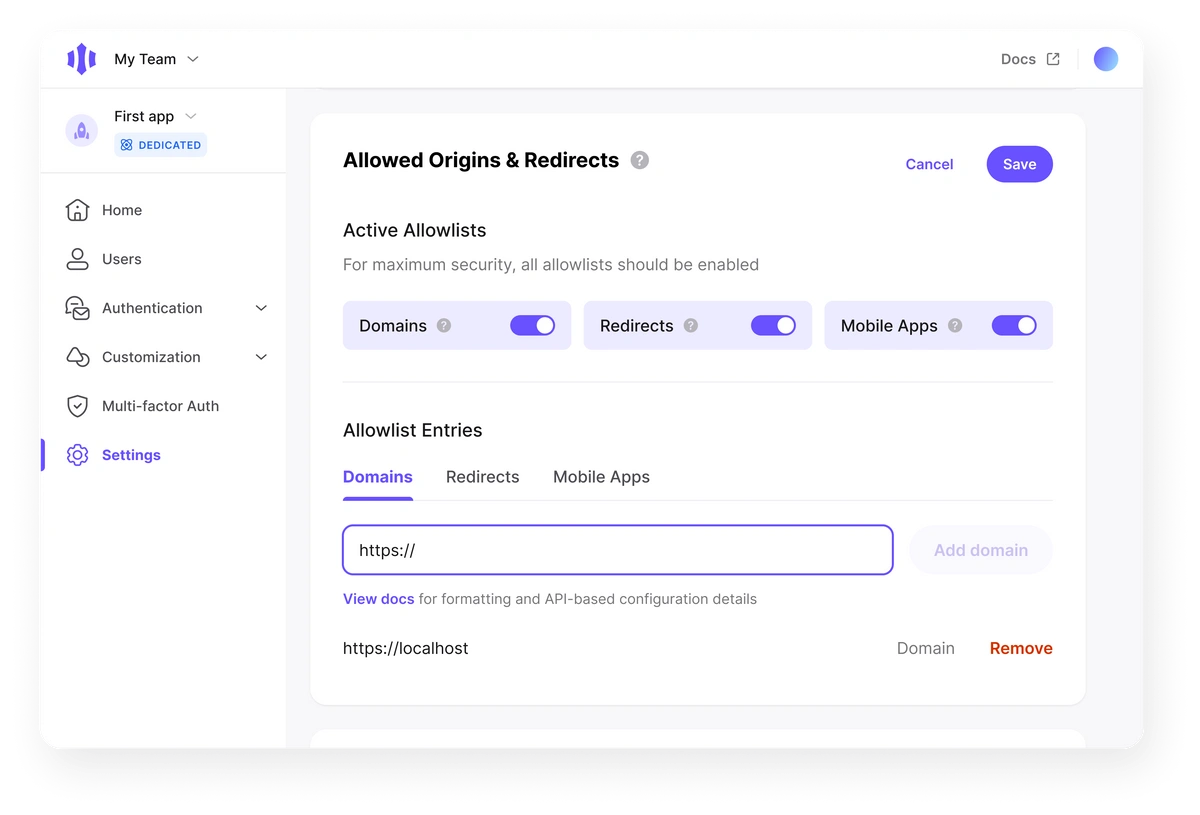
Go to the **Settings** tab of your selected application.
Scroll down to the **"Allowed Origins & Redirects"** section.
Toggle the **Domain** switch to enable it.
In the text input field that appears, add the domains you want to allow. You can add multiple domains by separating them with commas or line breaks.
Click **Save** to apply your domain allowlist configuration.
 ### Domain Formatting
When adding domains to your allowlist, follow these formatting rules:
* **Full domains**: `example.com`, `app.example.com`
* **Subdomains**: `*.example.com` (wildcard for all subdomains)
* **Localhost**: `localhost`, `localhost:3000`
* **IP addresses**: `192.168.1.1`, `192.168.1.1:8080`
* **Protocols**: Include `https://` or `http://` if needed
```
example.com
app.example.com
*.example.com
localhost:3000
https://staging.myapp.com
```
* Use specific domains when possible instead of wildcards
* Include both `www` and non-`www` versions if needed
* Add staging and production domains separately
* Test with `localhost` during development
### New Projects
For new applications created after December 15, 2023, the Domain Allowlist feature **is mandatory**. By default, the `localhost` domain is included for convenience during development.
**Development Tip**: The `localhost` domain is automatically included to help with local development. Make sure to add your production domains before deploying to production.
### Existing Projects
For applications created before December 15, 2023, the Domain Allowlist feature is **optional but highly recommended**. While not enforced, warning messages will appear in your dashboard if the feature is not enabled.
**Security Risk**: Without enabling the Domain Allowlist, your API keys remain vulnerable to unauthorized usage from any domain. We strongly recommend enabling this feature for all applications.
### Domain Formatting
When adding domains to your allowlist, follow these formatting rules:
* **Full domains**: `example.com`, `app.example.com`
* **Subdomains**: `*.example.com` (wildcard for all subdomains)
* **Localhost**: `localhost`, `localhost:3000`
* **IP addresses**: `192.168.1.1`, `192.168.1.1:8080`
* **Protocols**: Include `https://` or `http://` if needed
```
example.com
app.example.com
*.example.com
localhost:3000
https://staging.myapp.com
```
* Use specific domains when possible instead of wildcards
* Include both `www` and non-`www` versions if needed
* Add staging and production domains separately
* Test with `localhost` during development
### New Projects
For new applications created after December 15, 2023, the Domain Allowlist feature **is mandatory**. By default, the `localhost` domain is included for convenience during development.
**Development Tip**: The `localhost` domain is automatically included to help with local development. Make sure to add your production domains before deploying to production.
### Existing Projects
For applications created before December 15, 2023, the Domain Allowlist feature is **optional but highly recommended**. While not enforced, warning messages will appear in your dashboard if the feature is not enabled.
**Security Risk**: Without enabling the Domain Allowlist, your API keys remain vulnerable to unauthorized usage from any domain. We strongly recommend enabling this feature for all applications.
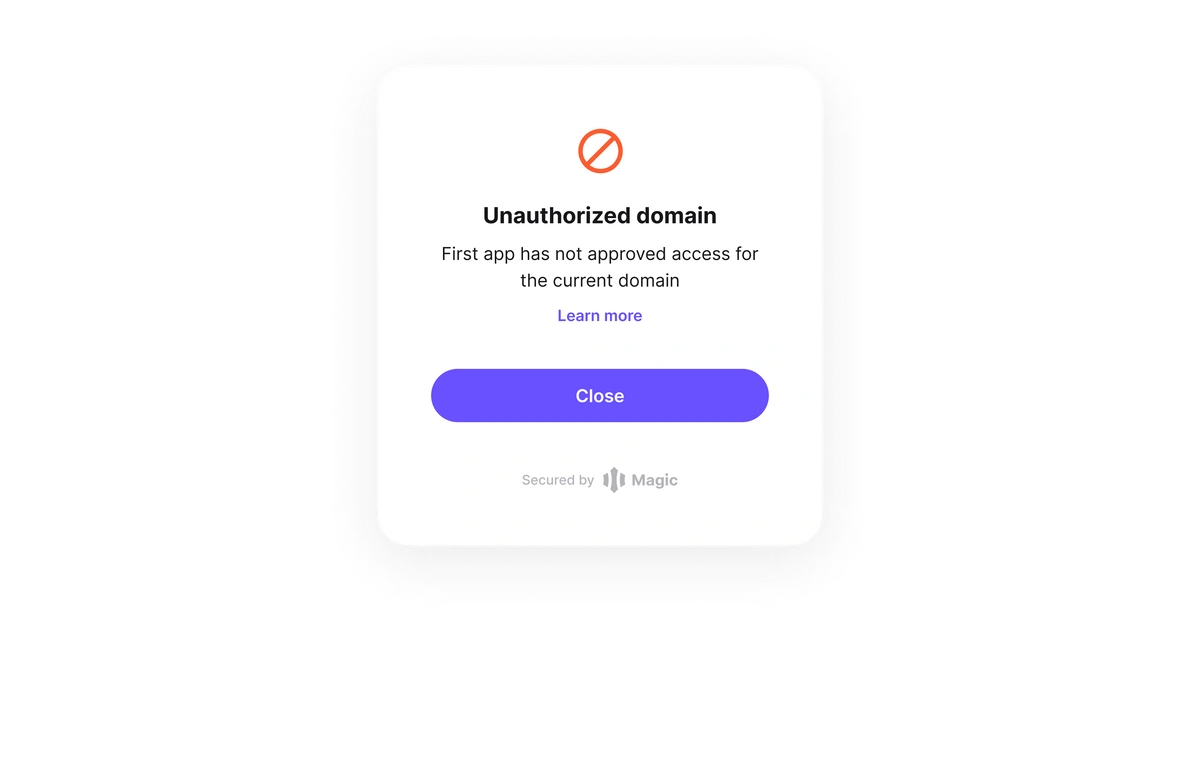
 If a project attempts to utilize a public key on a domain not included in the application's allowlist, a modal will appear. This modal will notify the user that an unauthorized domain is being used and that access has not been approved for that specific domain by the application.
 ### Programmatic Configuration
You can manage your domain allowlist programmatically using the Magic API. This is useful for:
* **Automated deployments**: Add domains as part of your CI/CD pipeline
* **Bulk management**: Add or remove multiple domains at once
* **Integration**: Manage domains from your own admin interface
#### Prerequisites
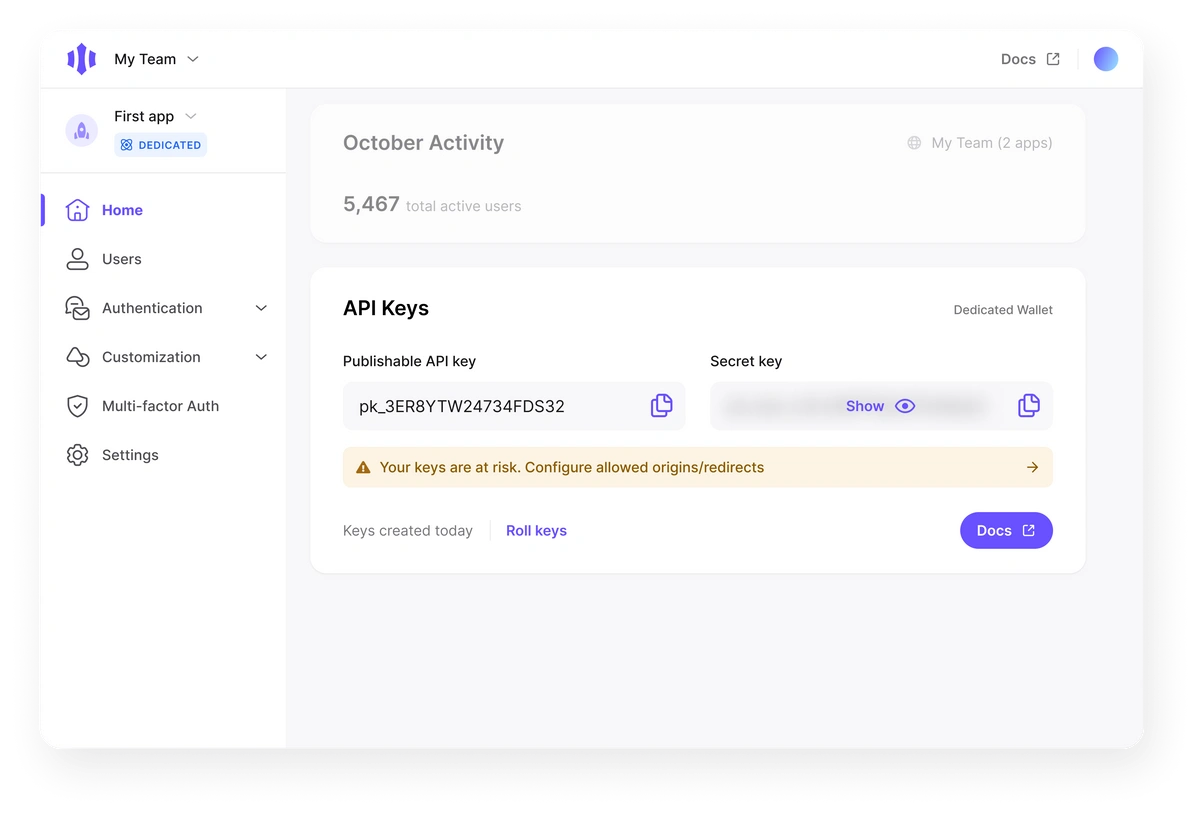
To use the programmatic API, you'll need your **Secret Key**:
Navigate to a Magic app from the main dashboard landing page
On the app home page, scroll to the **API Keys** section
Copy your **Secret Key** from the API Keys section
**Security**: Keep your Secret Key secure and never expose it in client-side code or public repositories.
#### API Operations
```bash List Domains icon="list" theme={null}
curl -X GET 'https://api.dashboard.magic.link/v1/admin/access_whitelist' \
-H 'X-Magic-Secret-Key: sk_live_XXXXXXXX'
```
```bash Add Domains icon="plus" theme={null}
curl -X POST 'https://api.dashboard.magic.link/v1/admin/access_whitelist' \
-H 'X-Magic-Secret-Key: sk_live_XXXXXXXX' \
-H 'Content-Type: application/json' \
-d '[
{
"access_type": "domain",
"value": "example.com"
}
]'
```
```bash Remove Domains icon="minus" theme={null}
curl -X DELETE 'https://api.dashboard.magic.link/v1/admin/access_whitelist' \
-H 'X-Magic-Secret-Key: sk_live_XXXXXXXX' \
-H 'Content-Type: application/json' \
-d '{
"access_type": "domain",
"value": "example.com"
}'
```
### Programmatic Configuration
You can manage your domain allowlist programmatically using the Magic API. This is useful for:
* **Automated deployments**: Add domains as part of your CI/CD pipeline
* **Bulk management**: Add or remove multiple domains at once
* **Integration**: Manage domains from your own admin interface
#### Prerequisites
To use the programmatic API, you'll need your **Secret Key**:
Navigate to a Magic app from the main dashboard landing page
On the app home page, scroll to the **API Keys** section
Copy your **Secret Key** from the API Keys section
**Security**: Keep your Secret Key secure and never expose it in client-side code or public repositories.
#### API Operations
```bash List Domains icon="list" theme={null}
curl -X GET 'https://api.dashboard.magic.link/v1/admin/access_whitelist' \
-H 'X-Magic-Secret-Key: sk_live_XXXXXXXX'
```
```bash Add Domains icon="plus" theme={null}
curl -X POST 'https://api.dashboard.magic.link/v1/admin/access_whitelist' \
-H 'X-Magic-Secret-Key: sk_live_XXXXXXXX' \
-H 'Content-Type: application/json' \
-d '[
{
"access_type": "domain",
"value": "example.com"
}
]'
```
```bash Remove Domains icon="minus" theme={null}
curl -X DELETE 'https://api.dashboard.magic.link/v1/admin/access_whitelist' \
-H 'X-Magic-Secret-Key: sk_live_XXXXXXXX' \
-H 'Content-Type: application/json' \
-d '{
"access_type": "domain",
"value": "example.com"
}'
```