> ## Documentation Index
> Fetch the complete documentation index at: https://docs.magic.link/llms.txt
> Use this file to discover all available pages before exploring further.
# Microsoft Social Login with Magic
> You can allow your users to sign up & log in to your web app with their Microsoft account.
## Usage
### Prerequisites
* You will need a [Microsoft Azure](https://portal.azure.com/) account
* You will need to have the [Magic SDK installed](/embedded-wallets/sdk/overview) into your web app
* You will need to have the [Magic SDK - OAuth Extension](/embedded-wallets/authentication/login/oauth/oauth-implementation) installed into your web app
### Microsoft Setup (v1 extension)
After installing the OAuth extension, you can now enable Microsoft Login for your Magic app:
1. Go to your [Magic Dashboard](https://dashboard.magic.link/login)
2. Select the Magic app for which you’d like to enable Microsoft Login, or create a new app
3. Navigate to **Social Login** from the sidebar
4. Click the toggle for **Microsoft**
5. Copy the **Redirect URI** field from your Magic Dashboard
6. Follow Microsoft's [registration instructions](https://docs.microsoft.com/en-us/azure/active-directory/develop/quickstart-register-app) to register your app
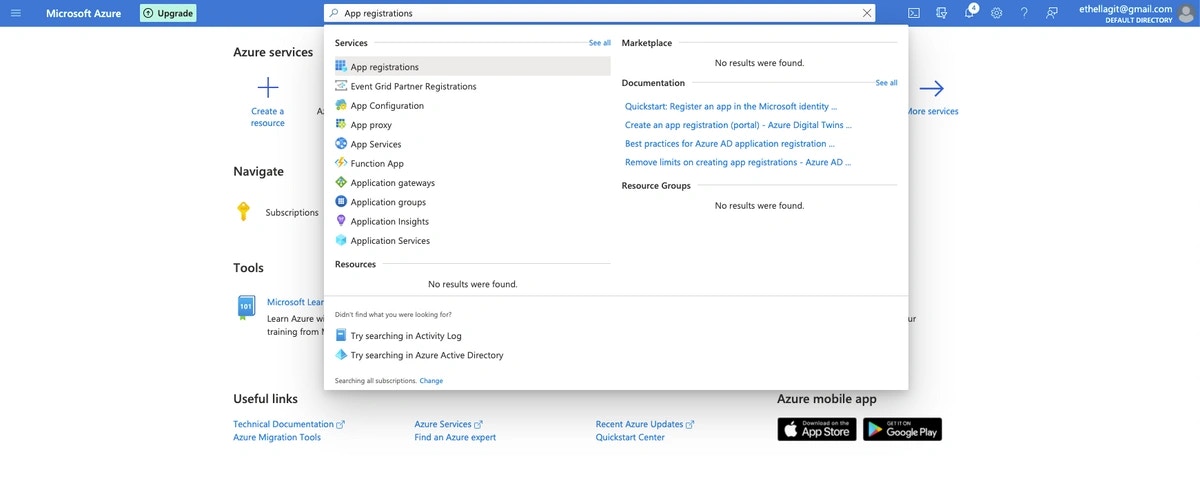
7. Search and navigate to **App registrations** section
 8. Click **New registration**
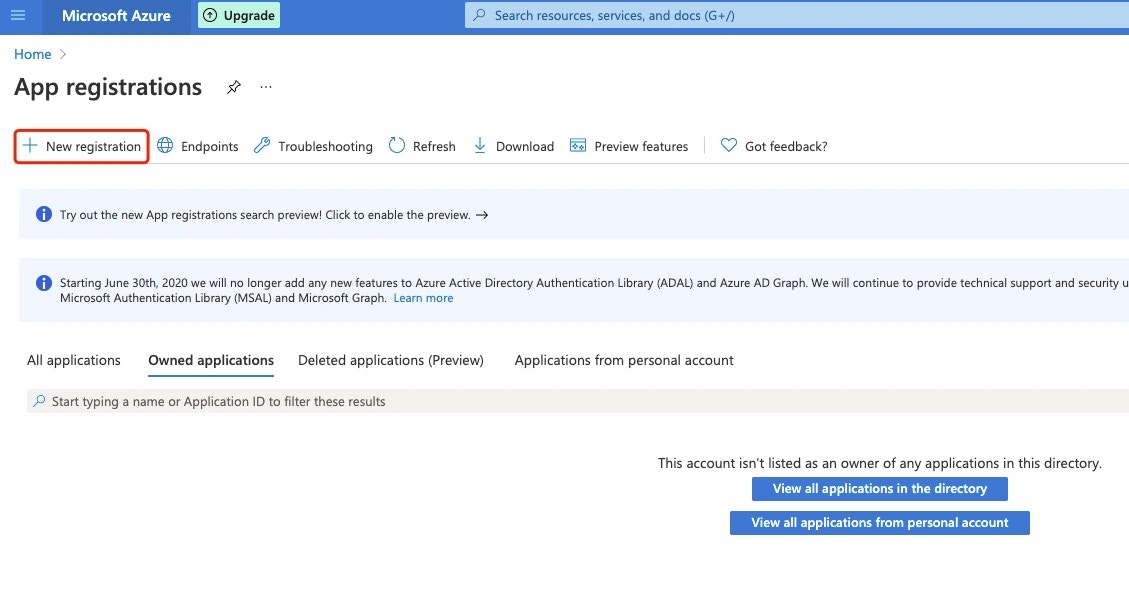 9. Make sure to select **personal Microsoft accounts** to allow your users to access your oauth app. Paste redirect link from Magic Dashboard into the **Redirect URI**.
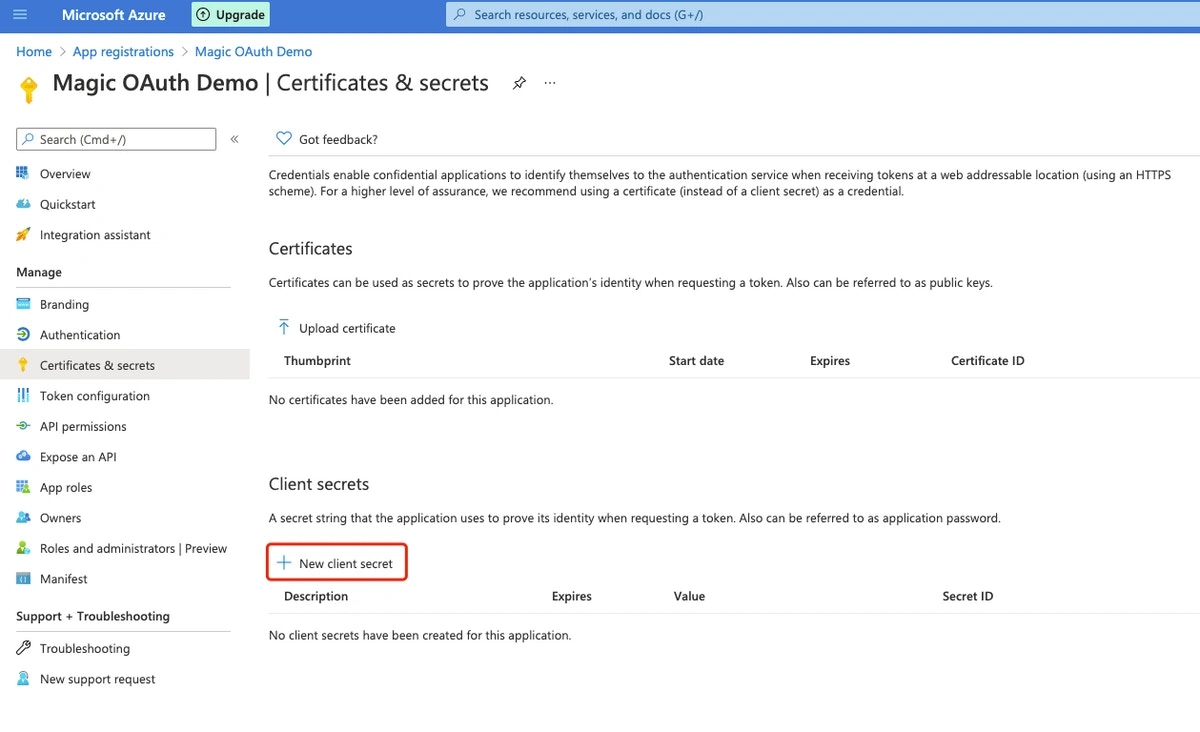
10. After register your app, select **Certificates & secrets** in the sidebar, click **New client secret**, and obtain the client secret **Value**
9. Make sure to select **personal Microsoft accounts** to allow your users to access your oauth app. Paste redirect link from Magic Dashboard into the **Redirect URI**.
10. After register your app, select **Certificates & secrets** in the sidebar, click **New client secret**, and obtain the client secret **Value**
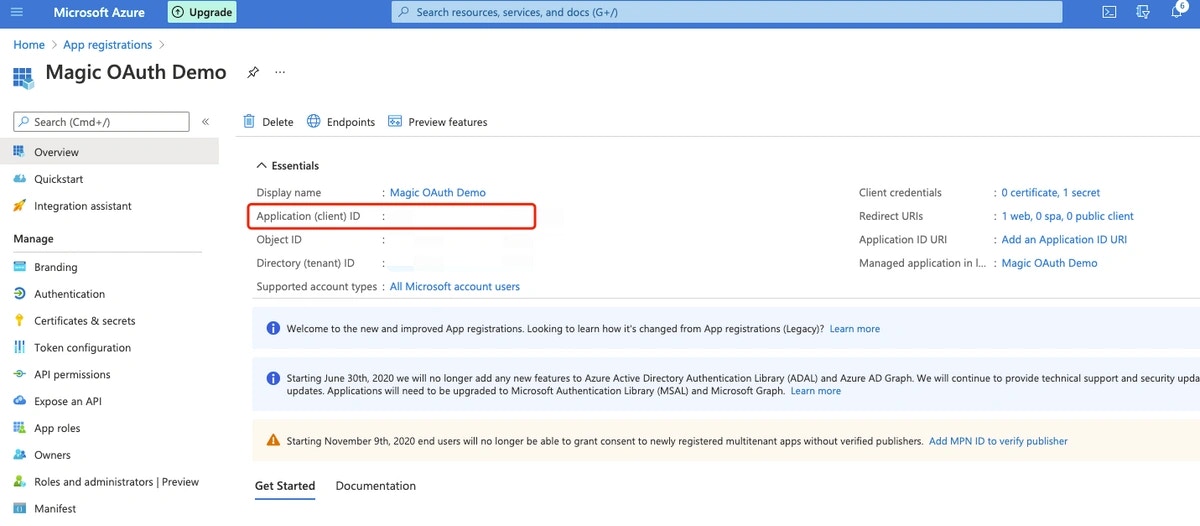
 11. Navigate back to **Overview** in the sidebar, obtain the Client ID
 12. Return to your Magic Dashboard and input the **Client ID** and **Client Secret** for your Microsoft OAuth app and click **“Save”**
13. Click **"Test Connection"** to give your new Microsoft OAuth flow a try!
### Microsoft Setup (v2 extension)
* Follow above steps, but disregard Magic's **Redirect URI** in step 5
* In step 9, paste the **Redirect URI** you are passing in as the **redirectURI** argument to the **loginWithRedirect** method
```javascript JavaScript icon="square-js" theme={null}
await magic.oauth2.loginWithRedirect({
provider: 'microsoft',
redirectURI: 'https://your-app.com/your/oauth/callback', // <== whitelist this with Microsoft
});
```
## Resources
* [Microsoft Social Login Demo](https://magic-oauth-v2-dun.vercel.app)
12. Return to your Magic Dashboard and input the **Client ID** and **Client Secret** for your Microsoft OAuth app and click **“Save”**
13. Click **"Test Connection"** to give your new Microsoft OAuth flow a try!
### Microsoft Setup (v2 extension)
* Follow above steps, but disregard Magic's **Redirect URI** in step 5
* In step 9, paste the **Redirect URI** you are passing in as the **redirectURI** argument to the **loginWithRedirect** method
```javascript JavaScript icon="square-js" theme={null}
await magic.oauth2.loginWithRedirect({
provider: 'microsoft',
redirectURI: 'https://your-app.com/your/oauth/callback', // <== whitelist this with Microsoft
});
```
## Resources
* [Microsoft Social Login Demo](https://magic-oauth-v2-dun.vercel.app)