> ## Documentation Index
> Fetch the complete documentation index at: https://docs.magic.link/llms.txt
> Use this file to discover all available pages before exploring further.
# Apple Social Login with Magic
> You can allow your users to sign up & log in to your web app with their Apple ID.
## Usage
### Prerequisites
* You will need an [Apple developer](https://developer.apple.com/) account
* You will need to have [created a primary **App ID**](https://developer.apple.com/library/archive/documentation/ToolsLanguages/Conceptual/DevPortalGuide/CreatingandConfiguringAppIDs/CreatingandConfiguringAppIDs.html) for your Apple developer account
* You will need to have the [Magic SDK installed](/embedded-wallets/sdk/overview) into your web app
* You will need to have the [Magic SDK - OAuth Extension](/embedded-wallets/authentication/login/oauth/oauth-implementation) installed into your web app
### Apple Setup
After installing the OAuth extension, you can now enable Sign in with Apple for your Magic app. You'll need to collect credentials from Apple first, then configure Magic.
**Step 1: Collect Apple Credentials**
1. Go to your [Apple developer dashboard](https://developer.apple.com/account)
2. Navigate to [Membership details](https://developer.apple.com/account/#/membership)
3. Find and copy your **Team ID** (you'll need this later for Magic Dashboard)
4. If you have not already created an Apple key, under **Certificates, IDs & Profiles** select **Keys**
5. On the Keys page, click the blue plus button to create a new key. Make sure to enable **Sign in with Apple**.
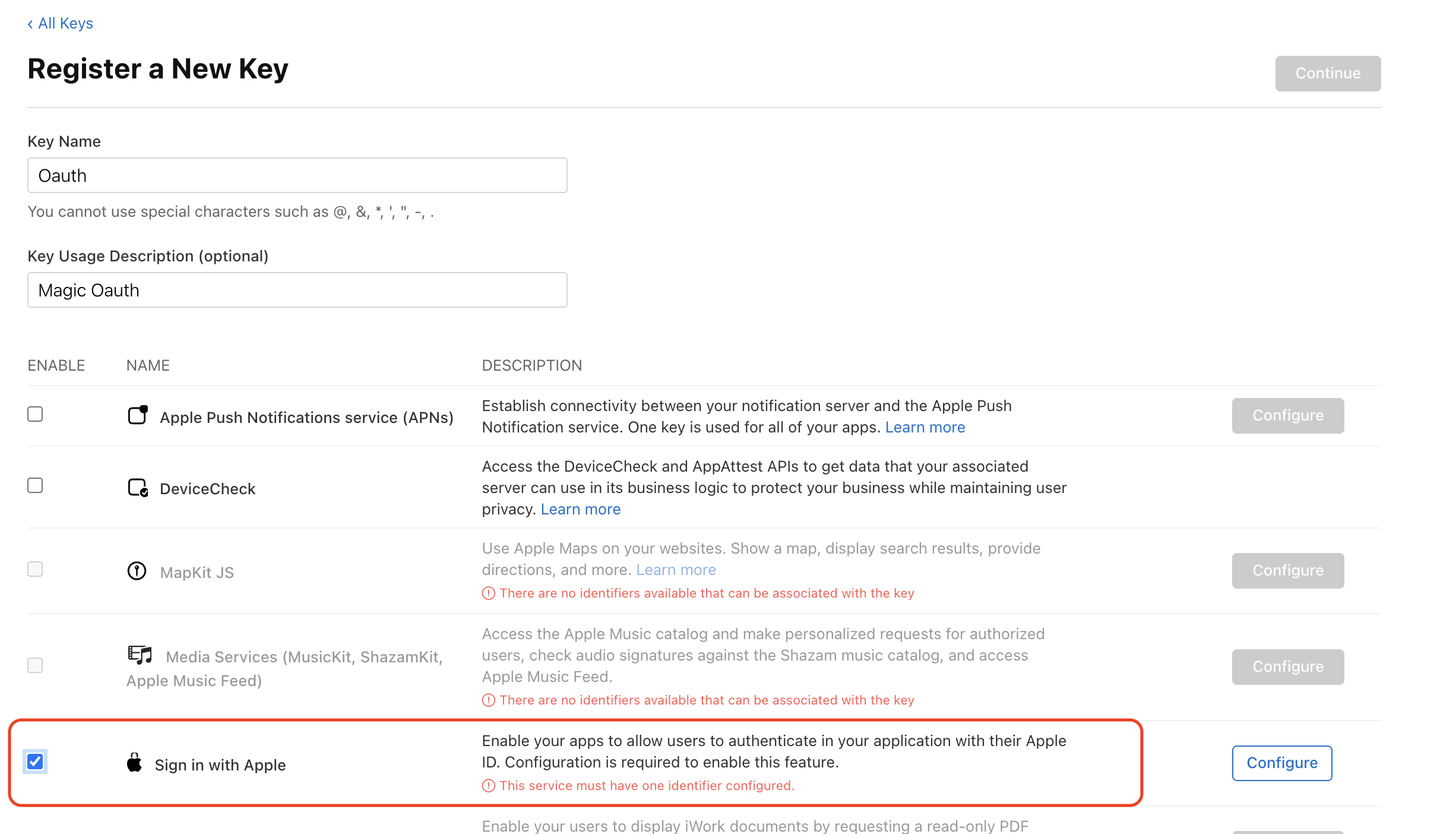 6. Complete the key setup and securely store your **Private Key** file and **Key ID** (you'll need both for Magic Dashboard)
7. In Apple's dashboard, navigate to **Identifiers** under [Certificates, IDs, & Profiles](https://developer.apple.com/account/resources/identifiers/list/serviceId)
8. Add a new [Services ID](https://developer.apple.com/account/resources/identifiers/add/serviceId) for your Magic authentication connection. Click **Continue**, then click **Register**
6. Complete the key setup and securely store your **Private Key** file and **Key ID** (you'll need both for Magic Dashboard)
7. In Apple's dashboard, navigate to **Identifiers** under [Certificates, IDs, & Profiles](https://developer.apple.com/account/resources/identifiers/list/serviceId)
8. Add a new [Services ID](https://developer.apple.com/account/resources/identifiers/add/serviceId) for your Magic authentication connection. Click **Continue**, then click **Register**
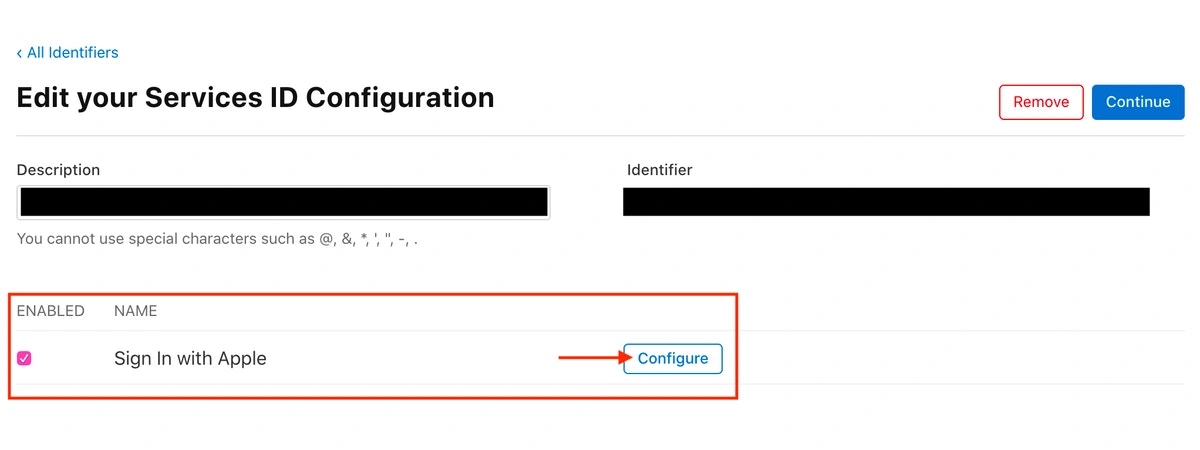
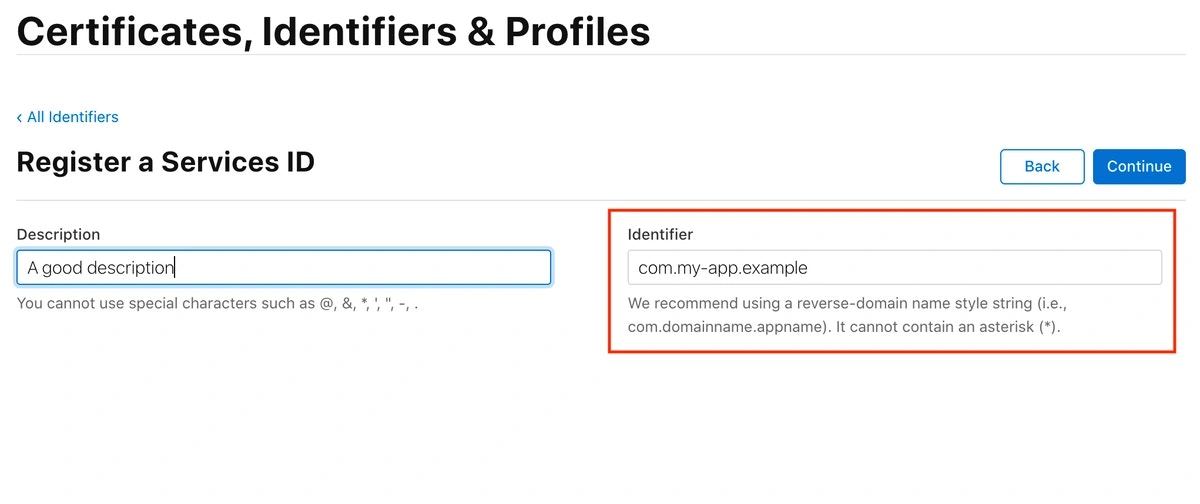 9. Click your newly created Services ID to enable it for **Sign in with Apple**. Then, click **Configure**
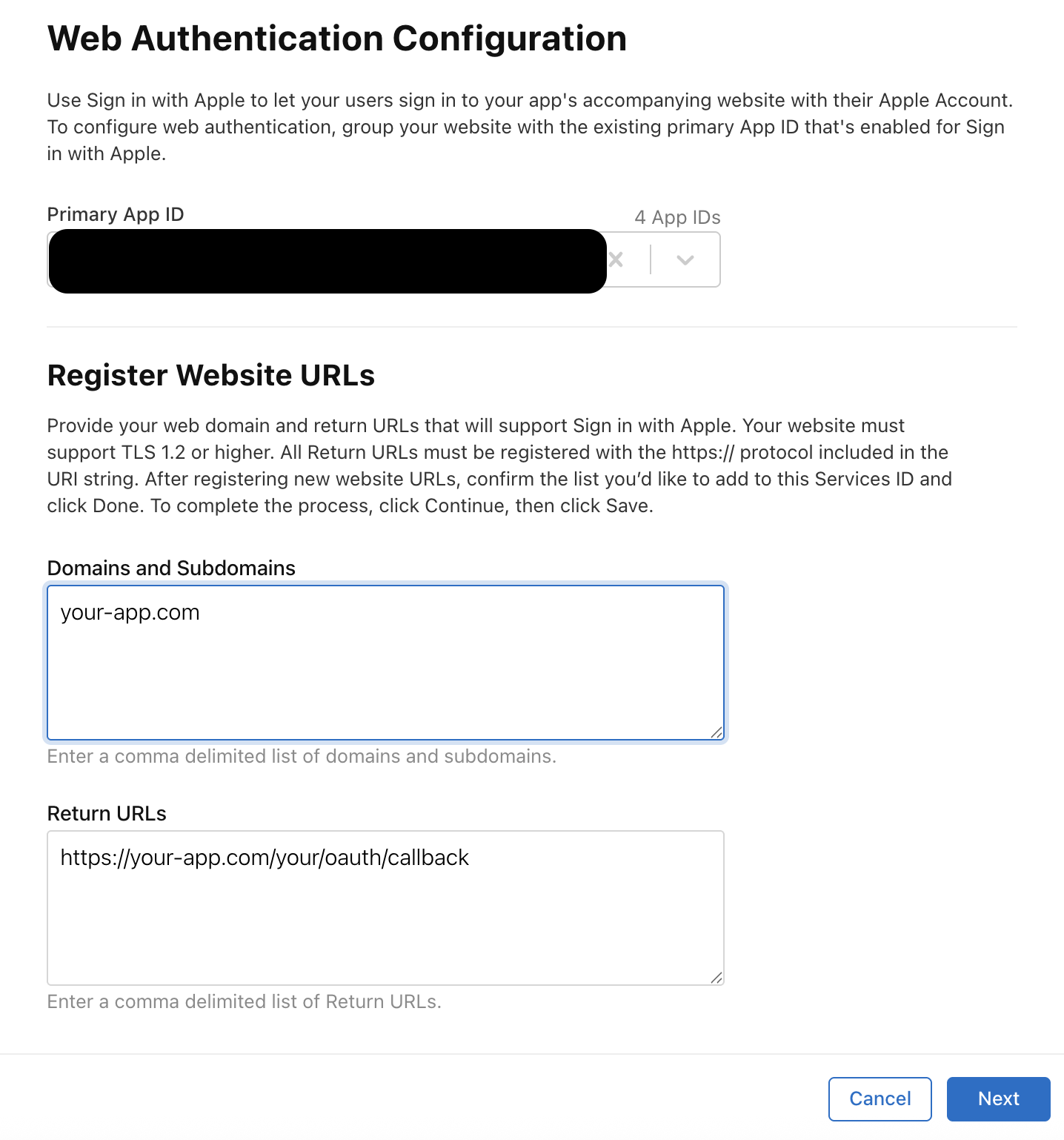
 10. In the configuration modal, whitelist your app's domain in **Domains & Subdomains**, and add your **Redirect URI** in the **Return URLs** field:
Add the **Redirect URI** you are passing as the **redirectURI** argument to the **loginWithRedirect** method:
```javascript JavaScript icon="square-js" theme={null}
await magic.oauth2.loginWithRedirect({
provider: 'apple',
redirectURI: 'https://your-app.com/your/oauth/callback', // whitelist this with Apple
});
```
10. In the configuration modal, whitelist your app's domain in **Domains & Subdomains**, and add your **Redirect URI** in the **Return URLs** field:
Add the **Redirect URI** you are passing as the **redirectURI** argument to the **loginWithRedirect** method:
```javascript JavaScript icon="square-js" theme={null}
await magic.oauth2.loginWithRedirect({
provider: 'apple',
redirectURI: 'https://your-app.com/your/oauth/callback', // whitelist this with Apple
});
```
 11. Click **Continue**, then **Save** to save your Services ID configuration
**Step 2: Configure Magic Dashboard**
12. Go to your [Magic Dashboard](https://dashboard.magic.link/login)
13. Select the Magic app for which you'd like to enable Sign in with Apple, or create a new app
14. Navigate to **Social Login** from the sidebar
15. Click the toggle for **Apple**
16. Input your Apple credentials: **Team ID**, **Services ID**, **Key ID**, and paste the contents of your **Private Key** file
17. Click **Save**
## Resources
* [Apple Social Login Demo](https://magic-oauth-v2-nine.vercel.app/)
11. Click **Continue**, then **Save** to save your Services ID configuration
**Step 2: Configure Magic Dashboard**
12. Go to your [Magic Dashboard](https://dashboard.magic.link/login)
13. Select the Magic app for which you'd like to enable Sign in with Apple, or create a new app
14. Navigate to **Social Login** from the sidebar
15. Click the toggle for **Apple**
16. Input your Apple credentials: **Team ID**, **Services ID**, **Key ID**, and paste the contents of your **Private Key** file
17. Click **Save**
## Resources
* [Apple Social Login Demo](https://magic-oauth-v2-nine.vercel.app/)