> ## Documentation Index
> Fetch the complete documentation index at: https://docs.magic.link/llms.txt
> Use this file to discover all available pages before exploring further.
# Custom Email Template
export const GrowthPlanCallout = () => {
return
This feature requires a subscription to Growth plan.
;
};
## Overview
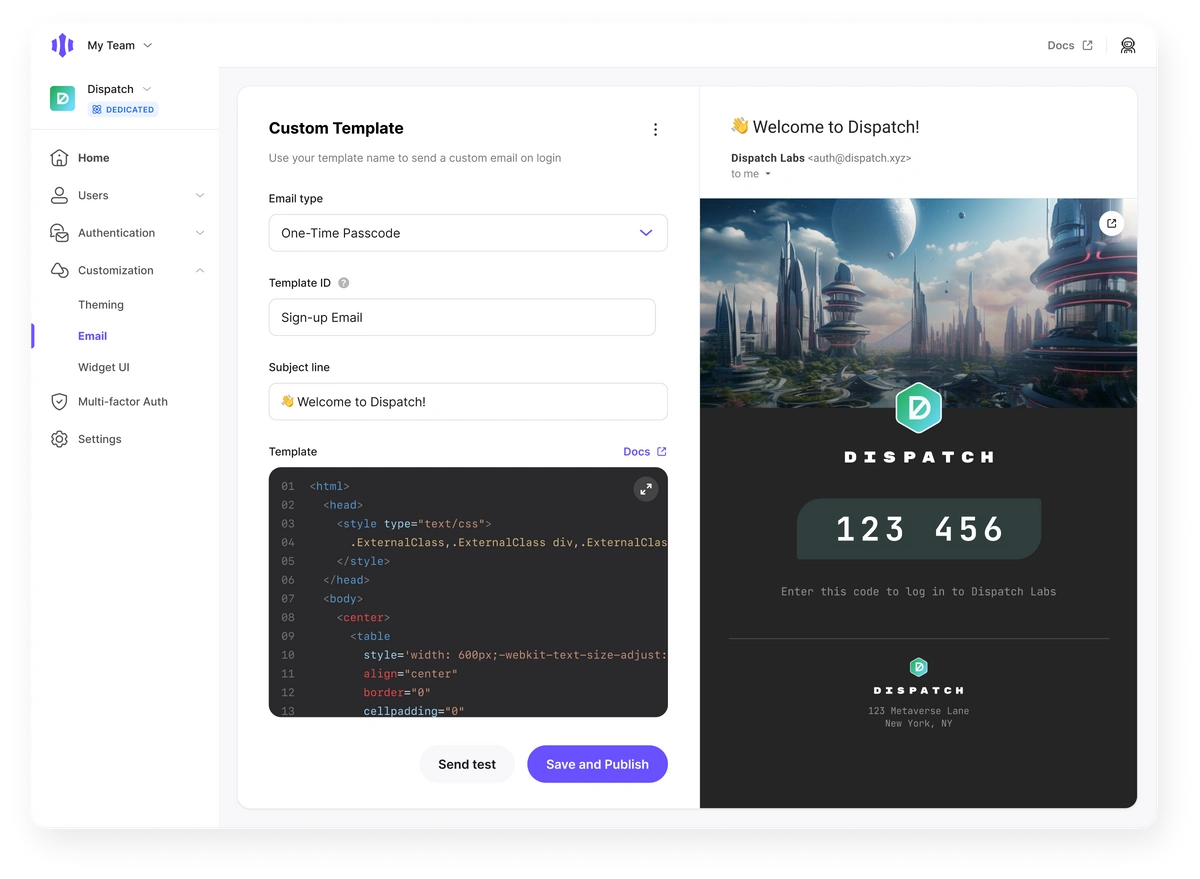 Magic's Custom Email Template feature allows you to fully tailor your app's login email using your own custom HTML. With this feature, developers can customize emails that use one-time passcodes.
**Note: Custom email templates require using your own existing email provider.** You can register a custom email provider through the Settings page in the Magic Dashboard. This feature is available to developers on our Growth or Enterprise Plans - you can head [here](https://magic.link/pricing) to learn more.
### Configuration
Custom Email Templates can be figured in the [Magic Dashboard](https://dashboard.magic.link). Navigate to **Customization**, then **Email** to create and edit templates.
The following is a list of variables that can be used when creating a custom email template in Magic. From the dashboard editor, variables must be wrapped in `{{}}` in order to be resolved to their value. For example, to use the one-time passcode, insert `{{otp}}` into the template.
* `otp`: One-time passcode. Example: 412320
* `app.name`: The name of the application. Example: "My test app"
* `user.email`: Email address of the user receiving the login email. Example: [joe@magic.link](mailto:joe@magic.link)
* `template.locale`: Language of the user receiving the login email. Example: en-US
* `login.device.browser`: Browser of the user receiving the login email. Example: Chrome
* `login.device.os`: Operating system of the user receiving the login email. Example: MacOS
* `login.timestamp`: Timestamp of when email was requested
## Localization
Custom email templates support Jinja-like conditional syntax for creating localized content based on the user's locale. This allows you to display different text depending on the `template.locale` value.
### Conditional Syntax
The template parser supports the following conditional structures:
```Jinja theme={null}
{% if condition %} content {% endif %}
{% if condition %} content {% else %} fallback content {% endif %}
{% if condition %} content {% elif condition %} alternative {% else %} fallback {% endif %}
```
### Supported Operators
| Operator | Description | Example |
| -------------- | --------------------- | ---------------------------------------------------- |
| `==` | Equality comparison | `template.locale == 'ja'` |
| `!=` | Inequality comparison | `template.locale != 'en-US'` |
| `startswith()` | Prefix matching | `template.locale.startswith('zh')` |
| `endswith()` | Suffix matching | `template.locale.endswith('-US')` |
| `and` | Logical AND | `template.locale == 'ja' and app.name` |
| `or` | Logical OR | `template.locale == 'ja' or template.locale == 'ko'` |
### Examples
**Basic locale switching:**
```Jinja theme={null}
{% if template.locale == 'es' %}
Código de inicio de sesión
{% else %}
Login Code
{% endif %}
```
**Matching locale variants with `startswith()`:**
```Jinja theme={null}
{% if template.locale == 'zh-CN' or template.locale.startswith('zh-') %}
登录验证码
{% elif template.locale == 'ja' %}
ログインコード
{% else %}
Your login code is: {{otp}}
{% endif %}
```
**Multiple language support:**
```Jinja theme={null}
{% if template.locale == 'es' %}
Tu código de inicio de sesión es: {{otp}}
{% elif template.locale == 'fr' %}
Votre code de connexion est: {{otp}}
{% elif template.locale == 'de' %}
Ihr Anmeldecode lautet: {{otp}}
{% else %}
Your login code is: {{otp}}
{% endif %}
```
* `af` - Afrikaans
* `az` - Azerbaijani
* `bg` - Bulgarian
* `ca` - Catalan
* `cs` - Czech
* `cy` - Welsh
* `cy-GB` - Welsh (UK)
* `da` - Danish
* `de` - German
* `el` - Greek
* `en-US` - English (US)
* `es` - Spanish
* `et` - Estonian
* `fi` - Finnish
* `fr` - French
* `hr` - Croatian
* `hu` - Hungarian
* `id` - Indonesian
* `it` - Italian
* `ja` - Japanese
* `ko` - Korean
* `lt-LT` - Lithuanian
* `lv-LV` - Latvian
* `mk-MK` - Macedonian
* `nl` - Dutch
* `no` - Norwegian
* `pl` - Polish
* `pt` - Portuguese
* `ro` - Romanian
* `ru` - Russian
* `sk` - Slovak
* `sl-SI` - Slovenian
* `sr` - Serbian
* `sv` - Swedish
* `th` - Thai
* `tr` - Turkish
* `vi` - Vietnamese
* `zh-CN` - Chinese (Simplified)
* `zh-TW` - Chinese (Traditional)
### Preview with Locale Selector
When editing your template in the Magic Dashboard, you can preview how your email will appear in different languages using the locale selector in the preview panel. The selector will automatically detect which locales are used in your template's conditional statements and show only those options.
## Usage
> **ℹ️** **This feature is supported in Magic SDK 21.1.0 and above.**
### Testing
Once a template has been created, you can use the **Send Test** button at the bottom of the customization page to send an email to the account that is currently logged in. Note that test emails will contain placeholder values for `otp` and `magic_link`.
You can also view a live preview of your email in a separate browser window by selecting **Preview** from the overflow menu at the top of the page.
Testing the full end-to-end user experience will require publishing your template to a live development environment. To ensure the best results, we recommend utilizing a dedicated email testing service such as [Litmus](https://www.litmus.com/).
### Production
In order to use the newly created template, the `template name` must be passed in as an argument into the login method.
```javascript theme={null}
//one-time passcode
magic.auth.loginWithEmailOTP({
email: 'john@example.com',
overrides: {
variation: 'template name',
}
})
```
Magic's Custom Email Template feature allows you to fully tailor your app's login email using your own custom HTML. With this feature, developers can customize emails that use one-time passcodes.
**Note: Custom email templates require using your own existing email provider.** You can register a custom email provider through the Settings page in the Magic Dashboard. This feature is available to developers on our Growth or Enterprise Plans - you can head [here](https://magic.link/pricing) to learn more.
### Configuration
Custom Email Templates can be figured in the [Magic Dashboard](https://dashboard.magic.link). Navigate to **Customization**, then **Email** to create and edit templates.
The following is a list of variables that can be used when creating a custom email template in Magic. From the dashboard editor, variables must be wrapped in `{{}}` in order to be resolved to their value. For example, to use the one-time passcode, insert `{{otp}}` into the template.
* `otp`: One-time passcode. Example: 412320
* `app.name`: The name of the application. Example: "My test app"
* `user.email`: Email address of the user receiving the login email. Example: [joe@magic.link](mailto:joe@magic.link)
* `template.locale`: Language of the user receiving the login email. Example: en-US
* `login.device.browser`: Browser of the user receiving the login email. Example: Chrome
* `login.device.os`: Operating system of the user receiving the login email. Example: MacOS
* `login.timestamp`: Timestamp of when email was requested
## Localization
Custom email templates support Jinja-like conditional syntax for creating localized content based on the user's locale. This allows you to display different text depending on the `template.locale` value.
### Conditional Syntax
The template parser supports the following conditional structures:
```Jinja theme={null}
{% if condition %} content {% endif %}
{% if condition %} content {% else %} fallback content {% endif %}
{% if condition %} content {% elif condition %} alternative {% else %} fallback {% endif %}
```
### Supported Operators
| Operator | Description | Example |
| -------------- | --------------------- | ---------------------------------------------------- |
| `==` | Equality comparison | `template.locale == 'ja'` |
| `!=` | Inequality comparison | `template.locale != 'en-US'` |
| `startswith()` | Prefix matching | `template.locale.startswith('zh')` |
| `endswith()` | Suffix matching | `template.locale.endswith('-US')` |
| `and` | Logical AND | `template.locale == 'ja' and app.name` |
| `or` | Logical OR | `template.locale == 'ja' or template.locale == 'ko'` |
### Examples
**Basic locale switching:**
```Jinja theme={null}
{% if template.locale == 'es' %}
Código de inicio de sesión
{% else %}
Login Code
{% endif %}
```
**Matching locale variants with `startswith()`:**
```Jinja theme={null}
{% if template.locale == 'zh-CN' or template.locale.startswith('zh-') %}
登录验证码
{% elif template.locale == 'ja' %}
ログインコード
{% else %}
Your login code is: {{otp}}
{% endif %}
```
**Multiple language support:**
```Jinja theme={null}
{% if template.locale == 'es' %}
Tu código de inicio de sesión es: {{otp}}
{% elif template.locale == 'fr' %}
Votre code de connexion est: {{otp}}
{% elif template.locale == 'de' %}
Ihr Anmeldecode lautet: {{otp}}
{% else %}
Your login code is: {{otp}}
{% endif %}
```
* `af` - Afrikaans
* `az` - Azerbaijani
* `bg` - Bulgarian
* `ca` - Catalan
* `cs` - Czech
* `cy` - Welsh
* `cy-GB` - Welsh (UK)
* `da` - Danish
* `de` - German
* `el` - Greek
* `en-US` - English (US)
* `es` - Spanish
* `et` - Estonian
* `fi` - Finnish
* `fr` - French
* `hr` - Croatian
* `hu` - Hungarian
* `id` - Indonesian
* `it` - Italian
* `ja` - Japanese
* `ko` - Korean
* `lt-LT` - Lithuanian
* `lv-LV` - Latvian
* `mk-MK` - Macedonian
* `nl` - Dutch
* `no` - Norwegian
* `pl` - Polish
* `pt` - Portuguese
* `ro` - Romanian
* `ru` - Russian
* `sk` - Slovak
* `sl-SI` - Slovenian
* `sr` - Serbian
* `sv` - Swedish
* `th` - Thai
* `tr` - Turkish
* `vi` - Vietnamese
* `zh-CN` - Chinese (Simplified)
* `zh-TW` - Chinese (Traditional)
### Preview with Locale Selector
When editing your template in the Magic Dashboard, you can preview how your email will appear in different languages using the locale selector in the preview panel. The selector will automatically detect which locales are used in your template's conditional statements and show only those options.
## Usage
> **ℹ️** **This feature is supported in Magic SDK 21.1.0 and above.**
### Testing
Once a template has been created, you can use the **Send Test** button at the bottom of the customization page to send an email to the account that is currently logged in. Note that test emails will contain placeholder values for `otp` and `magic_link`.
You can also view a live preview of your email in a separate browser window by selecting **Preview** from the overflow menu at the top of the page.
Testing the full end-to-end user experience will require publishing your template to a live development environment. To ensure the best results, we recommend utilizing a dedicated email testing service such as [Litmus](https://www.litmus.com/).
### Production
In order to use the newly created template, the `template name` must be passed in as an argument into the login method.
```javascript theme={null}
//one-time passcode
magic.auth.loginWithEmailOTP({
email: 'john@example.com',
overrides: {
variation: 'template name',
}
})
```